
Contactless Business Cards: How to Share Without Paper
Every way to share a contactless business card — NFC tap, QR code, link, wallet pass, email signature. Setup steps and when to use each method.
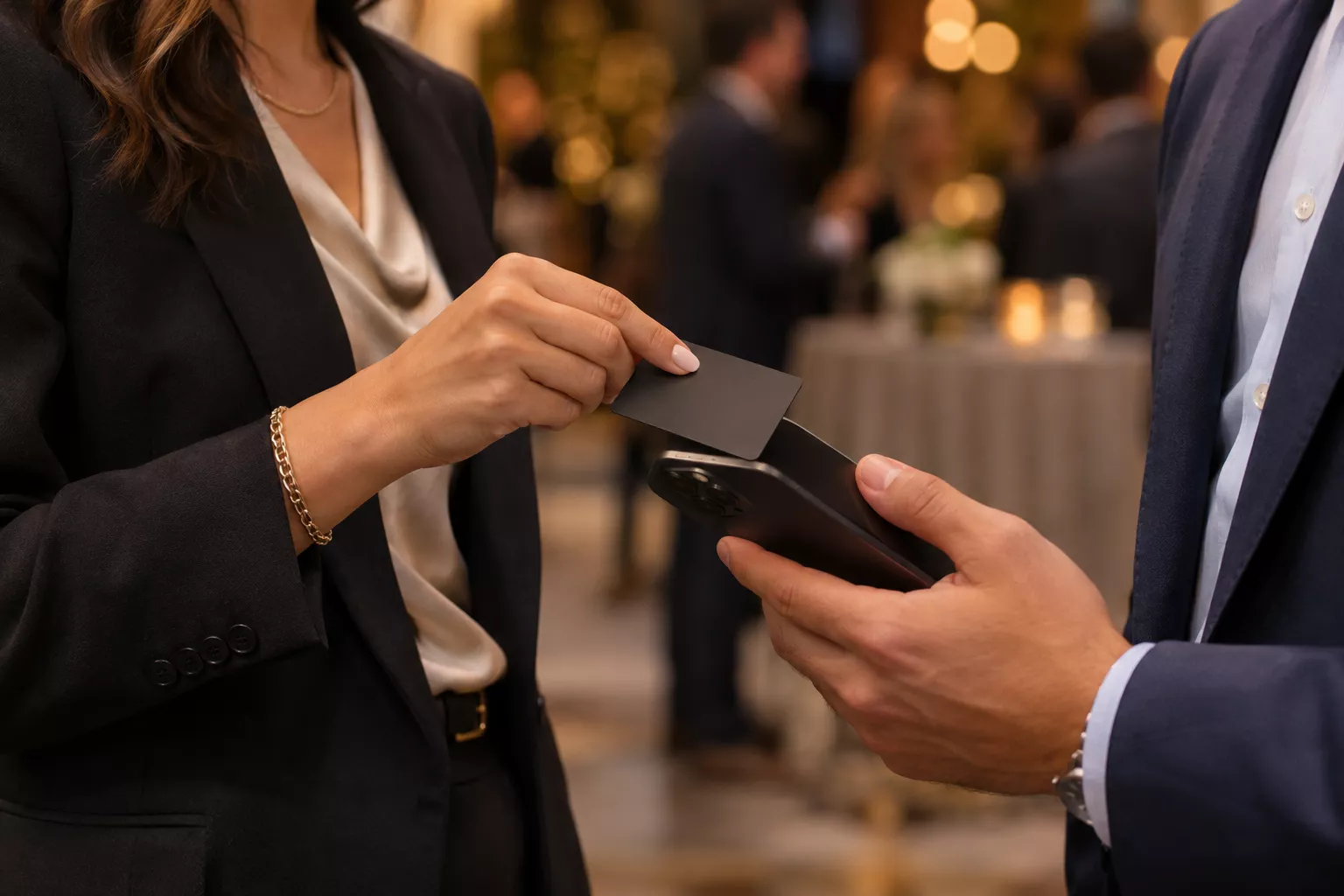
A contactless business card is any card — physical or digital — that shares your professional information without the recipient handling a paper card or typing your details manually. You tap, scan, or send a link, and your contact profile opens on their phone.
The term covers several technologies: NFC tap cards, QR codes, shareable profile links, wallet passes, and even features like Apple's NameDrop. Each method works in different situations and has different requirements. This guide explains how each one works, when to use it, and how to set it up.
If you want to compare contactless cards to traditional paper cards specifically, read Digital Business Card vs. Paper Business Card. This article focuses on the sharing methods themselves.
The Six Contactless Sharing Methods
Here is every practical way to share a business card without paper, ranked by how they are most commonly used in professional networking.
1. NFC Tap
How it works: You hold a physical card with an embedded NFC chip near the recipient's phone. The phone reads a URL from the chip and opens your digital profile in its browser. No app needed on either side.
Speed: Under 2 seconds from tap to profile load.
Best for: In-person meetings, conferences, networking events, client visits — any situation where you are face to face and want the fastest possible exchange.
Requirements:
- A physical NFC card linked to your digital profile
- The recipient's phone must have NFC enabled (most modern smartphones do)
- The phone needs to be unlocked (iPhone) or screen-on (Android)
Setup: Create your digital profile, then order an NFC card from the shop. The card ships pre-linked — tap it on your phone to test before your next event.
Limitations: NFC only works within a few centimeters, so you need to be physically close. Thick phone cases or metal cases can weaken the signal. Some older phones (iPhone 6 and earlier) do not support NFC tag reading.
For a deeper technical explanation of how NFC cards work at the chip level, read NFC Business Cards: How the Technology Works.
2. QR Code Scan
How it works: The recipient opens their phone camera and points it at your QR code. A link appears on screen. They tap it, and your profile opens.
Speed: 3–5 seconds.
Best for: In-person sharing when you do not have an NFC card, presentations, printed materials, email signatures, social media posts, and any situation where the recipient can see a QR code image.
Requirements:
- A QR code image — printed on a card, displayed on your phone screen, or embedded in a document
- The recipient's phone camera must support QR scanning (97% of smartphones do natively)
Setup: Your Kobexa dashboard includes a downloadable QR code linked to your profile. You can also create custom QR codes with specific colors and sizes using the free QR code generator.
Limitations: Requires the recipient to physically see the code — does not work over a phone call or in a text-only context. Low-light environments can slow down camera detection.
QR codes are the most versatile contactless method because they work both in person and digitally. For design specs and print guidelines, see How to Make a QR Code for Your Business Card.
3. Direct Link
How it works: You copy your profile URL and send it to the recipient via text message, email, LinkedIn DM, WhatsApp, Slack, or any messaging platform.
Speed: As fast as you can paste a link — under 5 seconds.
Best for: Remote introductions, follow-up messages after meetings, email signatures, social media bios, and any digital communication.
Requirements:
- Your profile URL (e.g.,
kobexa.com/yourname) - Any messaging or email app
Setup: Copy your profile URL from your Kobexa dashboard. Save it in your phone's clipboard or Notes app for quick access.
Limitations: Requires an active conversation or channel — you cannot send a link to a stranger's phone without their number or handle. Less impactful than a tap or scan because there is no physical moment of exchange.
4. Apple Wallet / Google Wallet Pass
How it works: Some digital business card platforms let you save your card as a pass in Apple Wallet or Google Wallet. You open the pass from your lock screen and show the QR code, or the recipient scans it directly.
Speed: 3–5 seconds to pull up the pass, plus scanning time.
Best for: People who want instant access to their QR code without opening an app or browser. Useful at events where you need to share repeatedly and want one-swipe access.
Requirements:
- A digital business card platform that supports wallet passes (not all do)
- iPhone with Apple Wallet or Android with Google Wallet
Setup: Check whether your platform offers wallet pass export. If available, download the pass from your profile settings. It saves to your wallet app and can be accessed from the lock screen.
Limitations: Kobexa does not currently support wallet passes. Platforms that do include Blinq (free tier) and Popl (paid plans). Wallet passes display a QR code — the recipient still needs to scan it, so the interaction is similar to showing a QR code from your phone screen.
5. Email Signature
How it works: You embed your profile link and optionally your QR code image in your email signature. Every email you send becomes a contactless sharing opportunity.
Speed: Passive — the recipient clicks when they are ready.
Best for: Ongoing professional communication. Every email you send includes your digital card without any extra effort.
Requirements:
- Your profile URL
- Access to your email client's signature settings (Gmail, Outlook, Apple Mail)
Setup:
- Open your email client's signature editor.
- Add a line like "View my digital card" and hyperlink it to your profile URL.
- Optionally embed your QR code image below the link for a visual element.
- Save the signature — it applies to all future emails.
Limitations: The recipient needs to actively click the link. This is a low-effort, passive method — it works well for building cumulative impressions but is not ideal for a first introduction where you want immediate engagement.
6. Apple NameDrop
How it works: NameDrop is a feature in iOS 17 and later that lets two iPhones (or an iPhone and an Apple Watch) share contact cards when held close together. A prompt appears on both screens asking whether to share.
Speed: Under 3 seconds if both devices are ready.
Best for: iPhone-to-iPhone exchanges where both parties want to trade contact details simultaneously.
Requirements:
- Both people need iPhones running iOS 17 or later (or Apple Watch Series 7+)
- NameDrop must be enabled in Settings > General > AirDrop
- Both devices must be unlocked
Limitations: Apple-only — does not work with Android phones. Shares your Apple contact card (from the Contacts app), not a full digital business card profile with links, bio, and analytics. Limited to the fields in your Apple Contacts entry. No analytics or tracking.
NameDrop is useful for quick iPhone-to-iPhone swaps but is not a replacement for a full digital business card with social links, custom themes, and engagement tracking.
Comparison Table: When to Use Each Method
| Method | In-Person | Remote | Speed | Works Cross-Platform | Analytics | Setup Required |
|---|---|---|---|---|---|---|
| NFC tap | Yes | No | Fastest (~1s) | Yes (most phones) | Yes (via profile) | NFC card purchase |
| QR code scan | Yes | Yes (via image) | Fast (~3s) | Yes (97% of phones) | Yes (via profile) | Free — download from dashboard |
| Direct link | No | Yes | Instant (paste) | Yes (universal) | Yes (via profile) | Free — copy URL |
| Wallet pass | Yes | No | Fast (~3s) | Partial (Apple/Google) | Yes (via profile) | Platform-dependent |
| Email signature | No | Yes (passive) | Recipient-paced | Yes (universal) | Yes (via profile) | Free — edit signature settings |
| NameDrop | Yes | No | Fast (~2s) | No (Apple only) | No | iOS 17+ and enabled |
The best approach is to use multiple methods. NFC and QR cover in-person. Direct link and email signature cover remote. Together, they ensure you can share your card in any situation.
How to Set Up a Complete Contactless Sharing System
Here is a step-by-step setup that covers every scenario — in person, remote, and passive:
Step 1: Create Your Digital Profile
Sign up at kobexa.com/signup and add your name, title, bio, photo, contact details, and links. This is the foundation — every sharing method points to this profile.
Step 2: Set Up Your QR Code
Download your QR code from the Kobexa dashboard. Save it to your phone's photo library for quick access. You can also generate a custom-colored QR code if you want it to match your brand.
Step 3: Add Your Link to Email and Social
Copy your profile URL and add it to:
- Your email signature (hyperlinked text or embedded QR image)
- Your LinkedIn bio or headline
- Your Instagram, Twitter/X, or TikTok bio
- Your Zoom or Teams profile
This turns every digital touchpoint into a contactless sharing opportunity.
Step 4: Order an NFC Card (Optional)
For in-person networking, an NFC card from the shop gives you the fastest sharing method. Every Kobexa card includes both NFC and a printed QR code — so you are covered whether the recipient prefers tapping or scanning.
Step 5: Test Everything
- Tap your NFC card on an iPhone and an Android phone
- Scan your QR code with at least two different phone cameras
- Click your profile link from a text message and from an email
- Verify all your contact details and links are correct on the profile
Testing takes two minutes and prevents awkward failures at your next event.
Contactless Sharing at Events and Conferences
Events are where contactless business cards save the most time. Here is a practical workflow:
Before the event:
- Charge your phone (for QR display if needed)
- Put your NFC card in an accessible pocket — not buried in a wallet behind credit cards
- Confirm your profile is updated with any event-specific details (e.g., booth number, presentation link, scheduling link)
During conversations:
- Lead with the NFC tap if the other person has their phone out: "Here, tap this — it's my contact card"
- If they do not have their phone, offer the QR code: "You can scan this when you get a chance"
- For people you meet online at hybrid events, send your profile link in the chat
After the event:
- Check your analytics dashboard to see how many people viewed your profile
- See which links were clicked most — this tells you what resonated
- Follow up with people who viewed your profile multiple times or clicked your email/LinkedIn
72% of professionals prefer receiving digital cards over paper. At events, digital sharing is faster, cleaner, and generates data you can use for follow-up.
Limitations of Contactless Business Cards
Not everyone is familiar with the technology. While NFC and QR are mainstream, some people have never tapped an NFC card or scanned a QR code intentionally. A brief verbal prompt — "hold your phone here" or "point your camera at this" — removes the hesitation.
Internet required for profile loading. Every contactless method that opens a web profile requires the recipient to have internet access at the moment they scan or tap. In areas with poor connectivity (underground venues, rural locations), the profile will load once connectivity returns, but the real-time impression is lost.
Phone cases can block NFC. Metal cases, thick rubber cases, and wallet cases with card slots can weaken NFC signal strength. If a tap fails, the QR code serves as an immediate backup — this is why dual NFC + QR cards exist.
No universal standard for digital business cards. Each platform uses its own URL structure and profile format. There is no industry-wide standard for exchanging digital business cards the way vCards standardize contact files. This means interoperability between platforms is limited — your Kobexa profile and someone else's Popl profile exist as separate web pages, not interchangeable data.
Passive sharing relies on the recipient. Email signatures and social bios only work if the recipient actively clicks your link. Unlike an NFC tap — which is a deliberate, in-person moment — passive methods depend on the other person's curiosity and initiative.
Frequently Asked Questions
What is the fastest contactless way to share a business card?
NFC tap. It takes under two seconds from the moment the card touches the phone to the profile appearing on screen. QR scanning is the second fastest at about 3–5 seconds. Both are significantly faster than exchanging paper cards and manually entering contact details.
Do contactless business cards work without internet?
The sharing trigger — the NFC tap or QR scan — works without internet. Your phone camera can read a QR code and your NFC reader can capture a URL regardless of connectivity. However, opening the linked profile page requires internet. If the recipient is offline, the URL is saved and will load when they reconnect.
Can I share my contactless business card with someone who has an older phone?
Older phones (pre-2017) may not support NFC or native QR scanning. For these devices, the direct link method works universally — send your profile URL via text or email. The recipient opens it in any browser. This is why having multiple sharing methods available ensures compatibility with every phone.
How many contactless sharing methods should I set up?
At minimum, set up three: your profile link (for remote sharing), your QR code (for in-person and print), and your email signature (for passive sharing). Add an NFC card if you network in person regularly. Each method covers a different scenario, and having all three ensures you are never without a way to share.
Is a contactless business card more professional than a paper card?
In most modern professional contexts, yes. Tech, creative, startup, and sales industries increasingly expect digital fluency. Sharing via NFC or QR signals that you are current and efficient. In traditional or formal industries (law, government, diplomacy), paper cards may still be expected — in those cases, an NFC card provides a physical exchange that also delivers a digital experience.
Can two people exchange contactless business cards at the same time?
If both people have digital business cards, yes. You can tap your NFC card on their phone while they tap theirs on yours, or you can each scan the other's QR code. On Kobexa, your profile includes a contact capture form — so the other person can send you their details directly from your profile page, creating a two-way exchange from a single tap.
Do I need a different card for each sharing method?
No. A single Kobexa NFC card covers two sharing methods — NFC tap and QR scan — because every card includes both. Your digital profile URL covers the remaining methods — direct link, email signature, and social bios. One card plus one profile URL gives you full coverage.
Contactless business cards are not a single technology — they are a set of tools that replace paper with faster, trackable, and updatable alternatives. Set up your profile, download your QR code, and add an NFC card if you network in person. You will be covered in every scenario.
Ready to upgrade your networking?
Get your NFC business card from Kobexa
Tap to share your profile instantly — no app required. Pair it with a QR fallback and keep your details updatable forever.
Shop Now