
How to Make a QR Code for Your Business Card (2026 Guide)
Generate a QR code for your business card with the right size, format, and data type. Covers static vs dynamic, print specs, and common mistakes.
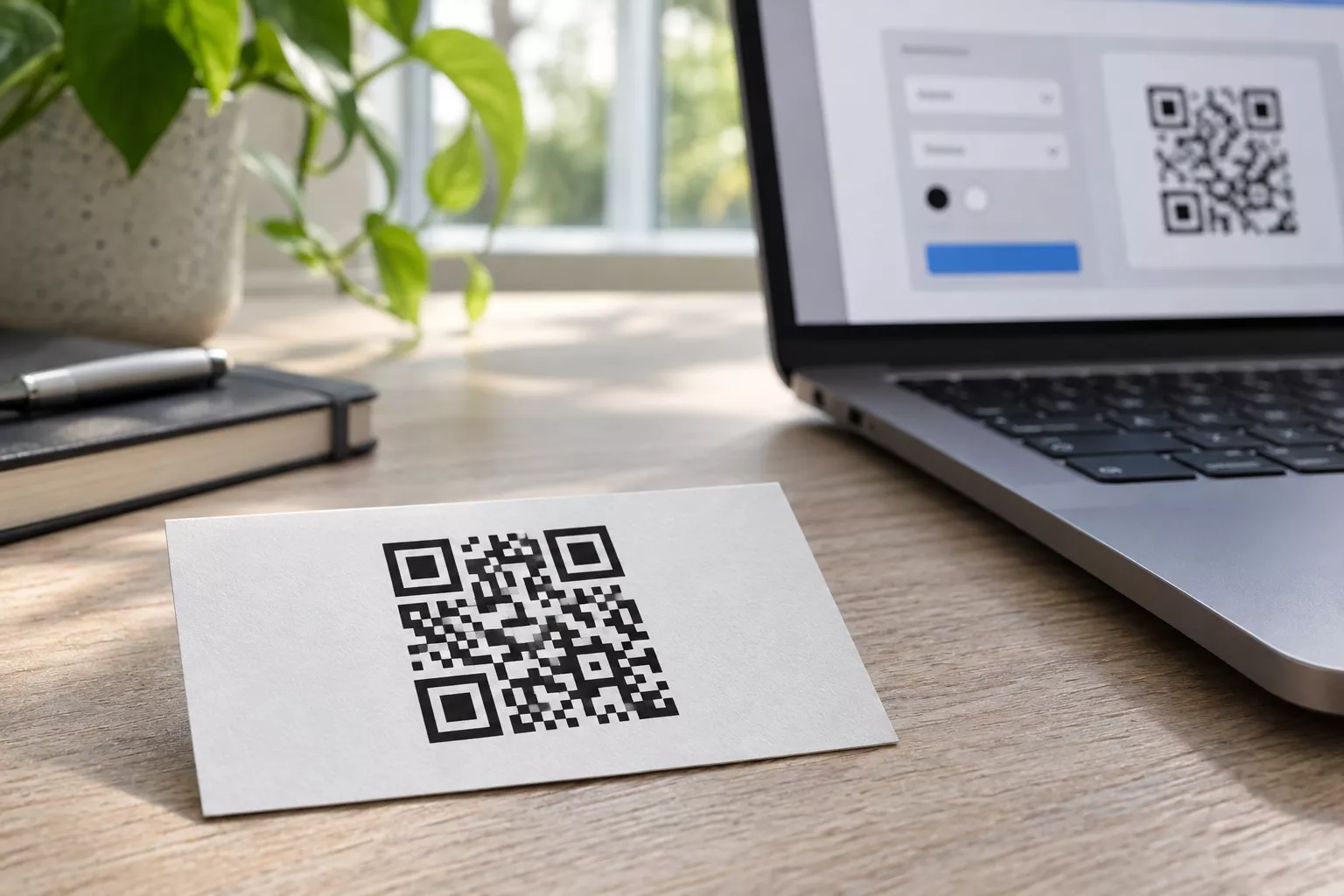
A business card QR code generator is a tool that creates a scannable QR code you can print on a card or share digitally. The code links to a URL, vCard file, or digital profile so the person scanning it gets your contact details without typing anything.
This guide covers how to generate the right type of QR code for a business card, what data format to use, the exact print specifications that ensure reliable scanning, and the mistakes that cause codes to fail after printing.
If you want a broader overview of QR code business cards — what they are, how they compare to paper, and where to use them — read QR Code Business Cards: How They Work. This article focuses specifically on the generation and print process.
What Data Should Your QR Code Contain?
The first decision is not which generator to use — it is what your QR code should link to. This choice determines whether your code stays useful over time or becomes outdated the moment your details change.
There are three practical options:
Option 1: A URL to a Digital Business Card
The QR code links to a web-based profile page (e.g., kobexa.com/yourname) that holds your name, phone, email, social links, bio, and photo. The profile is editable, so the QR code never goes stale even if your information changes.
This is the most flexible option. You create your digital business card once, and the QR code points to a permanent URL. Update your phone number or add a new link — every card in circulation automatically reflects the change.
Option 2: A vCard File
The QR code encodes a vCard (.vcf) — a standard contact file format. When scanned, the phone prompts the recipient to save your name, phone, email, and address directly to their contacts.
The advantage is that it works without an internet connection. The trade-off is that vCard data is baked into the QR pattern itself. If you change your phone number after printing, every card with that QR code still shows the old number. You would need to reprint.
vCards also produce denser QR codes because the data is longer than a simple URL. A denser code needs to be printed larger to scan reliably.
Option 3: A Plain URL
The QR code links to a website, LinkedIn profile, or any other single URL. Simple to set up, but limited — you can only share one destination. If you want recipients to see your phone number, email, and social profiles, a single URL to a homepage does not deliver that.
Which Option to Choose
| Data Type | Updatable After Printing | Works Offline | Information Shared | QR Code Density |
|---|---|---|---|---|
| Digital profile URL | Yes | No (needs internet to open) | Unlimited — all links, bio, photo | Low (short URL) |
| vCard | No — data is fixed in the code | Yes — saves directly to contacts | Name, phone, email, address | High (full contact data encoded) |
| Plain URL | Only if the page itself changes | No | Whatever is on the linked page | Low |
For most professionals, a digital profile URL is the best choice. It keeps the QR code small and scannable, and your information stays current without reprinting. You can create a free profile on Kobexa and link your QR code to it.
Static vs. Dynamic QR Codes
This distinction matters for business cards because it affects whether you can update or track your code after printing.
A static QR code writes the destination data — a URL or vCard — directly into the code pattern. Once printed, it cannot be changed or tracked. If you encoded linkedin.com/in/yourname and later change your LinkedIn username, the code breaks.
A dynamic QR code stores a short redirect URL. When scanned, the redirect forwards to your actual destination. You can change the destination anytime through a dashboard, and you get scan analytics (how many scans, when, where).
| Static QR Code | Dynamic QR Code | |
|---|---|---|
| Editable after printing | No | Yes — change destination anytime |
| Scan tracking | No | Yes — count, location, time |
| Requires a service | No — code is self-contained | Yes — depends on the redirect service |
| Code density | Higher if encoding long data (vCards) | Lower — encodes only a short redirect URL |
| Cost | Free | Free (some platforms) or paid subscription |
| Risk | Stale data if info changes | If the redirect service shuts down, the code stops working |
Here is the practical takeaway: if your QR code links to a digital business card profile (like a Kobexa URL), the distinction matters less. The URL itself is permanent, and you update the profile content — not the QR code. The code is technically static (it always points to the same URL), but the information behind it is dynamic because the profile page is editable.
This gives you the benefits of a dynamic code — updatable information, analytics through your profile dashboard — without depending on a third-party redirect service.
How to Generate a QR Code for Your Business Card
Step 1: Decide What to Link To
Choose between a digital profile URL, a vCard, or a plain URL based on the comparison above. If you do not have a digital business card yet, create one for free first.
Step 2: Generate the Code
Use the Kobexa QR code generator or any reliable generator. Enter your URL or data, then configure these settings:
- Error correction level: Set to M (medium) or Q (quartile). Error correction determines how much of the code can be damaged or obscured before it stops scanning. Level M recovers about 15% of the code; Level Q recovers about 25%. For business cards, M is the safe default. Use Q if your card has a textured surface or if you plan to place a small logo over part of the code.
- Output format: Choose SVG or PDF for print. These are vector formats that scale to any size without losing quality. Use PNG only if your print tool does not accept vectors — in that case, export at minimum 300 DPI at the final print size.
- Color: Black on white is the safest combination for scanning. If you customize colors, maintain strong contrast — dark code on a light background. Avoid inverting (light code on dark background), as some older camera apps struggle with it.
Step 3: Size It for Your Card
A standard business card is 3.5 × 2 inches (89 × 51 mm). The QR code needs to be large enough to scan reliably but not so large it dominates the card.
Minimum size: 20 × 20 mm (about 0.8 × 0.8 inches). Below this, scanning becomes unreliable in low light or at an angle.
Recommended size: 22–25 mm square. This fits comfortably on the back of a standard card with room for your name and a short call to action like "Scan to connect."
Quiet zone: Leave at least 4 modules (the small squares that make up the QR pattern) of blank space on all four sides. This margin is required by the QR code standard (ISO/IEC 18004) and is how the camera detects where the code begins and the background ends. Without it, some devices will not recognize the code.
Step 4: Place It on Your Card Design
Common placements:
- Back of the card, centered — the most common and reliable layout. Gives the code maximum size and keeps the front clean for your name, title, and logo.
- Back of the card, left or right — leaves room for a short line of text next to the code (e.g., "Scan for my full profile").
- Front of the card, bottom-right corner — works if you want both your info and the code on one side, but limits the code's size.
Avoid placing the QR code over a photograph, gradient, or busy background. Even if it scans fine on your test phone, different camera apps have different detection thresholds.
Step 5: Test Before Printing
This step prevents the most common failure: a code that looks fine on screen but does not scan once printed.
- Print a single test sheet at actual size on the same paper stock you plan to use for your cards.
- Scan with at least three devices — an iPhone, a recent Android phone, and an older Android phone if available.
- Scan in both good and dim lighting.
- Scan at arm's length, not just up close.
- Verify the correct page opens — not a 404 or an outdated URL.
If any device fails to scan, increase the code size by 3–5 mm, check your quiet zone margins, or raise the error correction level.
Error Correction Levels Explained
QR codes use Reed-Solomon error correction to remain scannable even when part of the code is damaged, dirty, or covered. There are four levels:
| Level | Damage Recovery | Code Density | Best For |
|---|---|---|---|
| L (Low) | ~7% | Lowest (smallest code) | Digital screens, pristine conditions |
| M (Medium) | ~15% | Moderate | Standard print on clean surfaces — business cards, flyers |
| Q (Quartile) | ~25% | Higher | Textured or glossy paper, outdoor signage |
| H (High) | ~30% | Highest (largest code) | Codes with embedded logos, rough surfaces |
For business cards, Level M is the right default. It handles minor print imperfections and everyday wear without making the code unnecessarily dense. Only use Level H if you are embedding a logo inside the QR pattern — the logo itself obscures part of the code, so you need maximum error correction to compensate.
Higher error correction means more data modules, which means a denser pattern that requires a larger print size to stay scannable. On a small business card, you want to keep density reasonable.
File Format Guide for Print
| Format | Type | Scales Without Pixelation | Best For |
|---|---|---|---|
| SVG | Vector | Yes | Professional print, design software (Illustrator, Figma, Canva) |
| Vector | Yes | Print shops, direct-to-press workflows | |
| PNG (300+ DPI) | Raster | Only up to exported size | Simple layouts, online print services |
| JPEG | Raster (lossy) | No — compression artifacts can break scanning | Not recommended for QR codes |
Never use JPEG for QR codes. JPEG compression blurs the sharp edges between modules, which can make the code unscannable. Always use SVG, PDF, or high-resolution PNG.
If exporting PNG, calculate the pixel dimensions: for a 25 mm (1 inch) code printed at 300 DPI, your file must be at least 300 × 300 pixels. For a 2-inch code at 300 DPI, you need 600 × 600 pixels.
Limitations and Edge Cases
Glossy and metallic card stock. High-gloss coatings create reflections that confuse some cameras. If you are using a premium glossy or metallic finish, increase your code size to 25–30 mm and use error correction Level Q. Matte and uncoated stocks scan most reliably.
Embossed or debossed printing. Raised or recessed printing over a QR code can distort the modules enough to prevent scanning. Keep the QR code area flat — apply embossing to other parts of the card.
Dark-colored cards. If your card stock is dark (navy, black, charcoal), you need to print the QR code in a white or light-colored block. A dark code on a dark background will not scan regardless of error correction level. Kobexa NFC cards solve this by printing the QR code in a dedicated light area on the back of every card — see the card designs.
Very short URLs vs. long URLs. A QR code encoding kobexa.com/jane has fewer modules than one encoding a 120-character URL with tracking parameters. Shorter URLs produce cleaner, easier-to-scan codes. If your URL is long, use a permanent short URL or a digital profile link instead.
No internet at scan time. A QR code linking to a web profile requires internet access when scanned. In offline scenarios (basements, flights, rural areas), the code still scans and the URL is saved — the page just loads once the recipient has a connection. vCard QR codes work fully offline but are not updatable.
How to Get Started
- Create your free digital business card on Kobexa — this gives you a short, permanent profile URL.
- Open the QR code generator and paste your profile URL.
- Set error correction to M, choose your colors, and export as SVG or high-res PNG.
- Place the code on your card design with at least 4 modules of quiet zone on all sides.
- Print a test sheet and scan with multiple phones before ordering a full run.
- Check your profile analytics to track how many people scan and view your card.
If you want a ready-made physical card with both NFC and a QR code already printed, Kobexa NFC cards ship with the QR code pre-configured on the back — no design work needed.
Frequently Asked Questions
What is the best QR code generator for business cards?
Any generator that lets you set the error correction level, choose the output format (SVG or PNG), and customize colors. The Kobexa QR code generator is free, requires no sign-up, and outputs PNG with adjustable size and error correction. For SVG output, tools like QR Code Monkey and Canva's built-in generator also work well.
Can I put a logo inside my QR code?
Yes, but only if you use error correction Level H. A centered logo typically covers 10–20% of the code area. Level H recovers up to 30%, leaving enough margin for the code to remain scannable. Keep the logo small, centered, and inside a clean square — do not let it overlap the three corner position markers (the large squares at three corners of the code).
How small can a QR code be on a business card?
The absolute minimum is 15 × 15 mm, but scanning becomes unreliable at that size in imperfect conditions. For business cards, 20–25 mm square is the practical range. If your code encodes a short URL, 20 mm works. If it encodes a full vCard, you may need 25–30 mm because the code is denser.
Should I use a static or dynamic QR code?
If your QR code links to a digital business card profile with a permanent URL, you get the best of both: the code itself is static (no redirect dependency), but the profile content is editable anytime. This avoids the risk of a dynamic redirect service shutting down while still letting you update your information. Use a true dynamic QR code only if you need to change the destination URL itself — not just the content behind it.
What happens if my QR code does not scan after printing?
Check these in order: (1) Is the quiet zone margin at least 4 modules wide on all sides? (2) Is the code at least 20 mm? (3) Is there strong contrast between the code and background? (4) Is the paper stock glossy or textured — try matte stock. (5) Was the file exported as JPEG — re-export as PNG or SVG. These five issues account for the majority of scanning failures on printed cards.
Do I need a different QR code for iPhone and Android?
No. QR codes follow a universal standard (ISO/IEC 18004). Any QR code that works on an iPhone works on Android and vice versa. Both platforms support native camera scanning without a third-party app — 97% of smartphones can read QR codes natively.
Can I track how many times my QR code is scanned?
Not directly from a static QR code. The QR code itself has no tracking capability. However, if the code links to a digital business card platform like Kobexa, the platform tracks profile views, link clicks, and visitor locations through its built-in analytics dashboard. You see the data — not who scanned, but how many views, when they happened, and which links were clicked.
A well-made QR code on a business card bridges the gap between a physical handoff and a digital connection. Get the format, size, and data type right, and every card you hand out becomes a working link to your full professional profile.
Ready to upgrade your networking?
Get your NFC business card from Kobexa
Tap to share your profile instantly — no app required. Pair it with a QR fallback and keep your details updatable forever.
Shop Now