
Tap-to-Share Business Cards: NFC, QR, and How Each Method Works
How tap-to-share business cards work — NFC tap, QR scan, and NameDrop compared. Speed, compatibility, setup, and tips for reliable sharing.
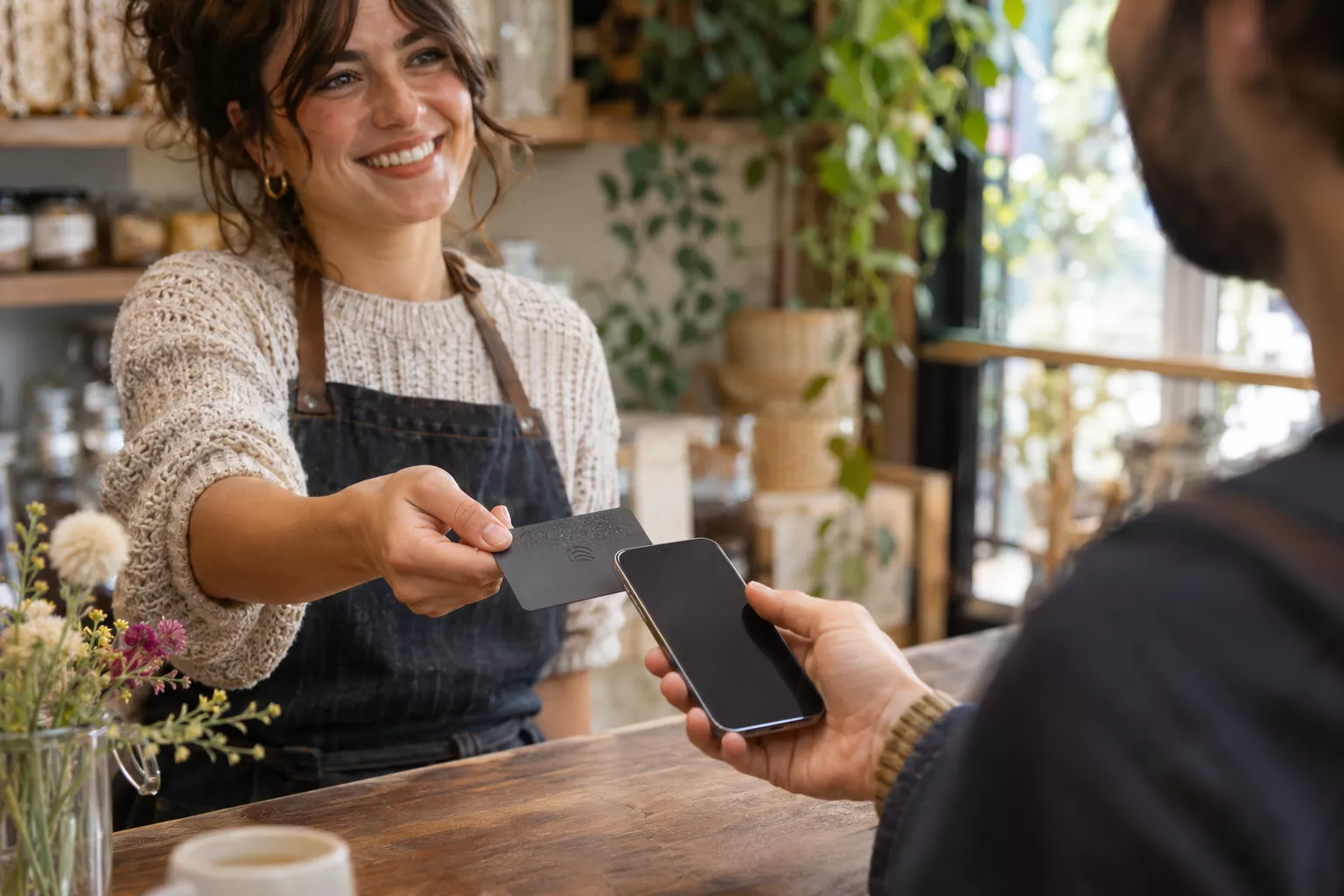
A tap-to-share business card is a physical card that transfers your contact information to someone's phone through a tap or scan — no typing, no app install, no paper exchange. The recipient holds their phone near the card (NFC) or points their camera at it (QR), and your digital profile opens in their browser.
This guide covers how each tap-to-share method works, what the recipient sees on their end, the practical differences between NFC, QR, and native phone features like Apple NameDrop, and how to make taps work reliably in real networking situations.
For a broader overview of all contactless sharing methods (including links, email signatures, and wallet passes), see Contactless Business Cards: How to Share Without Paper. This article focuses specifically on the in-person tap and scan experience.
How NFC Tap-to-Share Works
NFC (Near Field Communication) is the core technology behind tap-to-share business cards. It is the same wireless standard used in contactless payments — Apple Pay, Google Wallet, transit cards.
The Tap Sequence
- You hold the card near the recipient's phone. The card needs to be within 1–4 cm of the phone's NFC antenna.
- The phone powers the chip. NFC chips are passive — they have no battery. The phone's NFC reader generates a magnetic field that provides the tiny amount of power the chip needs.
- The chip transmits a URL. The stored payload is typically a short HTTPS link pointing to your digital profile.
- The phone displays a notification or opens the browser. On iPhone, a banner appears at the top of the screen. On most Android phones, the browser opens directly.
- Your profile loads. The recipient sees your name, photo, contact details, social links, and any other content on your profile page.
The entire exchange takes under two seconds from tap to profile.
What the Recipient Sees
On iPhone (XS/XR and newer): A notification banner slides down from the top of the screen showing the URL. The recipient taps it, and Safari opens your profile. If they have an older iPhone (7, 8, X), they need to open the NFC Tag Reader from Control Center first.
On Android (most phones from 2018+): The phone typically opens the default browser directly and loads your profile. Some devices show a brief confirmation prompt before opening.
In both cases, the recipient does not need to install any app. Your profile is a standard web page.
Where to Position the Card
The NFC antenna location varies by device:
| Device | NFC Antenna Position |
|---|---|
| iPhone (all NFC models) | Top edge, near the front camera |
| Samsung Galaxy | Center back |
| Google Pixel | Upper back |
| OnePlus | Upper back |
| Most other Android | Center or upper back |
If a tap does not register on the first attempt, slowly slide the card across the back of the phone. The sweet spot is usually a 2–3 cm area. Once you find it, subsequent taps are instant.
NFC Tap Success Tips
- Remove the card from your wallet before tapping. Other NFC-enabled cards (credit cards, transit passes) can interfere if they are between your business card and the phone.
- Ask the recipient to unlock their phone. iPhones require the screen to be unlocked for background NFC reading. Android phones need the screen on.
- Hold the card steady for one second. A quick swipe may not give the phone enough time to power the chip and read the data. A brief, firm hold is more reliable.
- Have a verbal prompt ready. "Hold your phone here — it'll open my contact page" sets the expectation and avoids confusion with contactless payments.
How QR Code Tap-to-Share Works
QR codes are the second tap-to-share method. Strictly speaking, a QR scan is a "point and read" interaction, not a physical tap — but in practice it achieves the same result: your profile opens on the recipient's phone without manual data entry.
The Scan Sequence
- The recipient opens their phone camera. No separate scanning app is needed on 97% of smartphones.
- They point the camera at the QR code. The code can be printed on a card, displayed on your phone screen, or shown on a slide or poster.
- A link appears on the phone screen. Most cameras show a notification or overlay with the URL.
- They tap the link. Your profile opens in the browser.
QR scanning takes 3–5 seconds — slightly slower than NFC but works from a short distance (up to about 30 cm) and does not require physical contact.
When QR Beats NFC
QR codes win in several scenarios where NFC cannot help:
- One-to-many sharing. You can show your QR code to a group — on a slide, a poster, or your phone screen — and multiple people can scan it simultaneously. NFC only works one phone at a time.
- Distance sharing. Someone across a table or a few feet away can scan a QR code. NFC requires being within centimeters.
- Older devices. iPhones before iPhone 7 and older Android phones without NFC can still scan QR codes using their camera.
- Digital-first contexts. You can embed a QR code in a presentation, PDF, email signature, or social media post. NFC requires the physical card.
For QR code design specs, file formats, and print sizing, see How to Make a QR Code for Your Business Card.
NFC vs. QR Code: Side-by-Side
| NFC Tap | QR Code Scan | |
|---|---|---|
| Interaction | Physical tap — card touches phone | Visual scan — camera points at code |
| Speed | Under 2 seconds | 3–5 seconds |
| Range | 1–4 cm (must be close) | Up to ~30 cm (camera distance) |
| One-to-many | No — one phone at a time | Yes — multiple people can scan simultaneously |
| Device compatibility | Most phones from 2018+ | 97% of smartphones |
| Works digitally | No — requires physical card | Yes — image can be shared via screen, email, print |
| Requires | NFC card (physical purchase) | QR code image (free to generate) |
| Failure fallback | QR code on the back of the card | Direct link sent via text or email |
| Impression factor | High — the tap feels novel and intentional | Moderate — familiar but less distinctive |
The bottom line: NFC is faster and more memorable for one-on-one in-person exchanges. QR is more versatile and works in situations NFC cannot reach. The most reliable setup is both — an NFC chip in the card and a QR code printed on the back.
Apple NameDrop vs. NFC Business Cards
Apple introduced NameDrop in iOS 17, allowing two iPhones (or an iPhone and Apple Watch) to share contact cards by holding them close together. It is a form of tap-to-share, but it works differently from an NFC business card.
| NFC Business Card | Apple NameDrop | |
|---|---|---|
| What it shares | Your full digital profile (links, bio, photo, social media, analytics) | Your Apple Contacts entry (name, phone, email) |
| Cross-platform | Yes — works with iPhone and Android | No — Apple devices only |
| Customizable | Yes — themes, link ordering, bio, photo, toggle visibility | Limited — shares whatever is in your Contacts app |
| Analytics | Yes — views, clicks, locations | No |
| Updatable | Yes — edit profile anytime; card stays the same | Only if you update your Apple contact card |
| Requires | NFC card + digital profile | iOS 17+ on both devices |
| Two-way exchange | Yes (via contact capture on profile) | Yes (both parties share simultaneously) |
NameDrop is convenient for quick iPhone-to-iPhone swaps, but it shares limited data (just your Contacts entry) and does not work with Android users. An NFC business card shares a complete digital profile and works with any NFC-enabled phone regardless of operating system.
If you network primarily with other iPhone users and only need to share basic contact details, NameDrop works. If you want a full professional profile with social links, analytics, and cross-platform compatibility, an NFC business card is the more capable option.
Making the Tap Work: Real-World Scenarios
Conference or Networking Event
The situation: You are meeting 10–30 people in a few hours. Speed and reliability matter.
Best method: Lead with NFC tap. Keep the card in your front pocket or badge holder for quick access — not buried in a wallet. When you meet someone, say: "Here's my card — just hold your phone near this." If the tap fails (case interference, older phone), flip the card and say: "You can also scan the QR code on the back."
Why it works: NFC is the fastest method, and the physical tap creates a memorable moment. The QR code ensures you are never stuck.
Client Meeting
The situation: A more deliberate, professional exchange with one or two people.
Best method: NFC tap followed by "I just sent you my full profile — you'll see my email, phone, and LinkedIn there." The recipient gets everything they need to follow up without asking you to spell your email address.
After the meeting: Check your analytics to confirm they viewed your profile. If they clicked specific links (like your calendar or portfolio), reference those in your follow-up.
Trade Show Booth
The situation: High volume — dozens or hundreds of people stopping by your booth.
Best method: Display a large QR code on a poster or table card. Visitors scan at their own pace without waiting for a one-on-one tap. For higher-value conversations, switch to the NFC card for a personal touch.
Why QR wins here: Multiple people can scan the same QR code simultaneously. NFC would create a bottleneck.
Virtual or Hybrid Event
The situation: You are meeting people over Zoom, Teams, or a hybrid conference platform.
Best method: Share your profile link in the chat. You can also display your QR code as a virtual background or on your closing slide. NFC does not work remotely.
Casual or Unexpected Introduction
The situation: You meet someone at a coffee shop, gym, or social event and do not have your NFC card with you.
Best method: Pull up your QR code on your phone (saved in your photo library or accessible from your Kobexa dashboard) and have them scan it. Alternatively, text them your profile link on the spot.
Common Tap Failures and How to Fix Them
| Problem | Cause | Fix |
|---|---|---|
| No response on tap | Card held in wrong position | Move card slowly across back of phone until it registers; try upper area for iPhone |
| NFC not detected | NFC disabled on Android | Ask recipient to enable NFC in Settings > Connected Devices |
| Notification appears but link fails | Profile URL is broken or platform is down | Test your card periodically; keep your profile active |
| QR code will not scan | Low light, too small, or low contrast | Increase screen brightness (if showing on phone) or move to better lighting |
| Tap triggers payment prompt | Recipient thinks it is Apple Pay | Explain before tapping: "This opens my contact page, not a payment" |
| Reads a different card | Multiple NFC cards in wallet | Remove your business card from the wallet before tapping |
Most failures are resolved in under 10 seconds. Having both NFC and QR on the same card means you always have a backup.
Limitations and Edge Cases
NFC does not work through all phone cases. Metal cases and thick wallet cases block or weaken the NFC signal. Most standard silicone and thin plastic cases work fine. MagSafe accessories on iPhones generally do not interfere.
QR codes fail in very low light. If the venue is dark (bars, dimly lit event halls), phone cameras may struggle to detect a printed QR code. Showing the QR code on your phone screen with brightness turned up usually works.
Not every recipient knows what to do. Some people have never been tapped with an NFC card. A one-sentence prompt eliminates confusion: "Hold your phone here — it'll open my info." For QR, "Point your camera at this" is enough.
Tap-to-share is in-person only for NFC. If you need to share remotely, you need your profile link or QR image. NFC requires physical proximity. This is why setting up both in-person and remote sharing methods matters — see the complete sharing setup guide.
Battery matters. The recipient's phone needs to be on. A dead phone means no tap and no scan. There is no workaround for this — carry a paper card as an emergency fallback if this happens regularly in your networking environment.
How to Get Started
- Create your free digital profile at kobexa.com/signup — add your details, links, bio, and photo.
- Download your QR code from the dashboard and save it to your phone for quick access.
- Order an NFC card from the shop — every card includes NFC + printed QR code. Available in Black, Blue, Green, and Pink with free U.S. shipping.
- Test both methods on an iPhone and an Android phone before your next event.
- Practice your prompt — "Hold your phone here" for NFC, "Point your camera at this" for QR.
One card, two sharing methods, zero paper.
Frequently Asked Questions
How fast is tap-to-share compared to exchanging paper cards?
An NFC tap takes under 2 seconds. A QR scan takes 3–5 seconds. Exchanging paper cards and manually entering the contact details takes 30–60 seconds per person. Over a full networking event, tap-to-share saves significant cumulative time and ensures the contact details are actually saved, not left on a card in a pocket.
Do I need two separate cards for NFC and QR?
No. Most NFC business cards — including Kobexa cards — include a printed QR code on the back. One card gives you both methods. The NFC chip and QR code point to the same profile URL, so the recipient sees identical information regardless of which method they use.
What if the recipient does not have NFC on their phone?
Flip the card and have them scan the QR code. If their camera does not support QR scanning either (rare on phones from the last five years), send them your profile link via text. Between NFC, QR, and a direct link, you have three fallback layers.
Can I tap-to-share with an Apple Watch?
An NFC business card can tap against an Apple Watch with NFC capability (Series 4 and later), but the experience is less reliable than tapping against a phone. The watch's NFC antenna is designed for Apple Pay, not general tag reading, and the small screen makes interacting with the opened profile difficult. Phone-to-card remains the most reliable combination.
Does tap-to-share work through a phone case?
Most standard cases — silicone, thin plastic, TPU — do not block NFC. Metal cases and thick wallet cases with card slots can interfere. If a tap fails through a case, the recipient can either hold the card against a thinner part of the case or use the QR code as an immediate fallback.
Is tap-to-share secure?
NFC communication only works within a few centimeters, making remote interception practically impossible. The tap opens a public web page — your digital profile — which contains only information you chose to publish. No private data is transferred from the recipient's phone to your card. The interaction is one-directional: card to phone.
How many taps can an NFC business card handle?
NFC chips used in business cards (NTAG family) are rated for 100,000+ read cycles. Even if you tap 50 times per day, the chip would last over five years. The physical card — scratches, bending, wear — will likely need replacement before the chip does.
Tap-to-share turns a two-second interaction into a saved digital contact. NFC handles the fastest in-person exchanges; QR covers everything else. Put both on the same card, and you never have to worry about which method the other person's phone supports.
Ready to upgrade your networking?
Get your NFC business card from Kobexa
Tap to share your profile instantly — no app required. Pair it with a QR fallback and keep your details updatable forever.
Shop Now