
QR Code Business Cards: How They Work and How to Use One
Learn how QR code business cards work, how to create one, and why they outperform paper cards. Includes setup steps, design tips, and real adoption data.
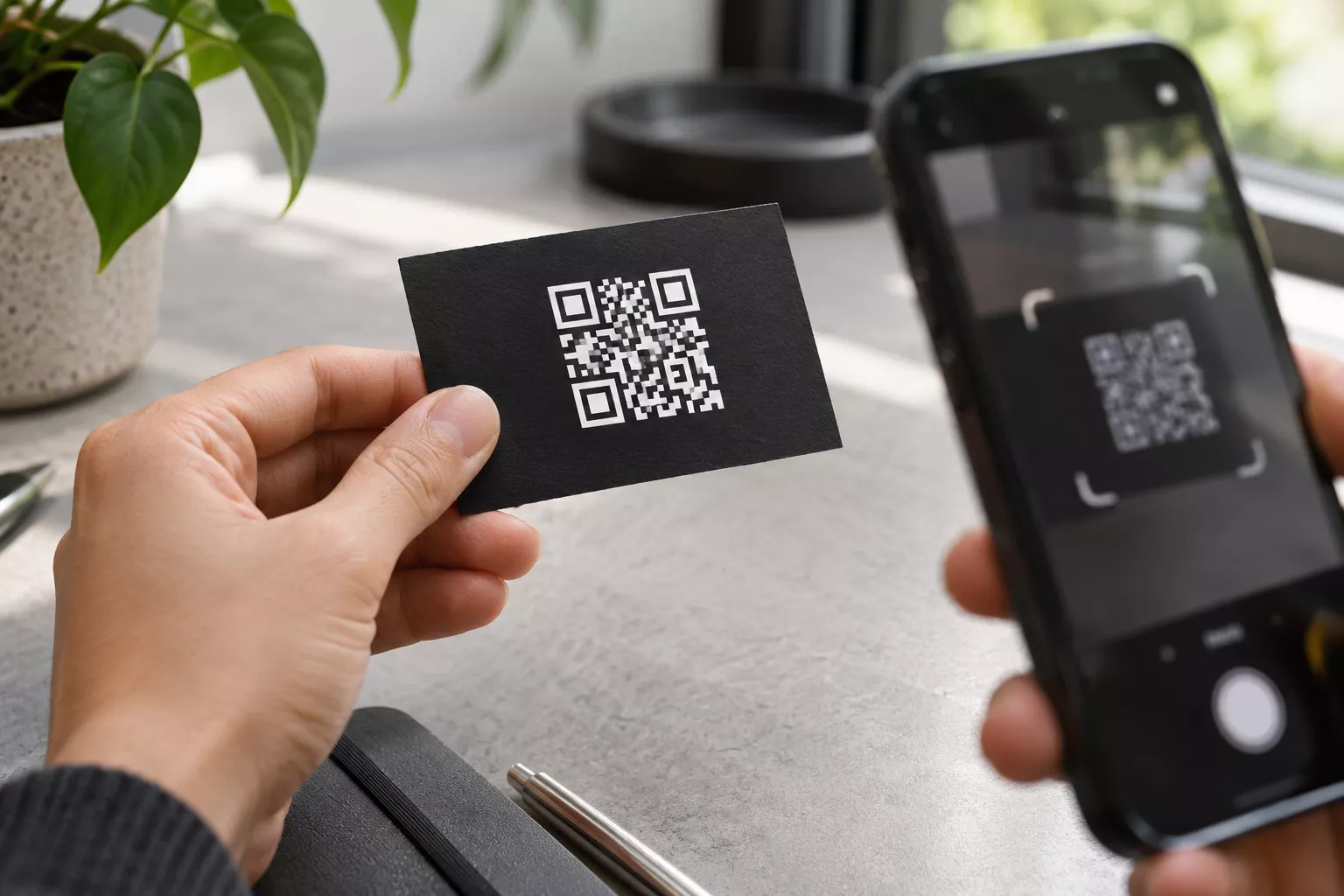
A QR code business card is a card — physical or digital — that includes a scannable QR code linking to your contact details, website, or digital profile. Instead of manually typing a phone number or email, the person you meet scans the code with their phone camera and gets your information instantly.
Over 100 million people in the United States alone scan QR codes regularly. 97% of smartphones now support native QR code scanning without a third-party app. That means nearly everyone you hand a card to can scan it immediately.
This guide covers how QR code business cards work, how to create one, what to link to, and how they compare to paper cards and NFC cards.
How a QR Code Business Card Works
A QR (Quick Response) code is a two-dimensional barcode that stores data — usually a URL. When someone points their phone camera at it, the phone decodes the pattern and opens the link.
Here is the process in practice:
- You share your card — either a printed card with a QR code or a digital image on your phone screen.
- The other person opens their camera app — no separate scanner app is needed on iOS or Android.
- They point the camera at your QR code — a notification or link appears on screen.
- They tap the link — your digital profile, vCard, or website opens in their browser.
The entire interaction takes under five seconds. No typing, no spelling out email addresses, no lost cards.
What Your QR Code Can Link To
The destination behind your QR code determines how useful it is. Here are the most common options, from least to most flexible:
A vCard File
A vCard (.vcf) is a digital contact file. When scanned, it prompts the recipient to save your name, phone number, email, and address directly to their phone contacts.
Pros: Direct save to contacts, works offline after download. Cons: Static — you cannot update the information after printing. If your phone number or job title changes, you need a new QR code.
You can create a vCard file for free and test this yourself.
A Website or LinkedIn Profile
You can link your QR code to any URL — your company website, LinkedIn, portfolio, or a landing page.
Pros: Simple to set up. Cons: Limited to a single link. You cannot share your phone number, multiple social profiles, and a website from one QR code this way.
A Digital Business Card Profile
A digital business card is a dedicated profile page that holds all your professional information in one place: phone, email, social media links, bio, photo, and more. This is the most flexible option because you can update your details anytime without changing the QR code.
With Kobexa you can create a free digital business card that includes all your links, contact info, and social media on one shareable page. The QR code always points to the same URL, but the content behind it stays current.
Pros: All your information in one place, updatable anytime, includes analytics. Cons: Requires the recipient to have internet access at the time of scanning.
How to Create a QR Code Business Card
Option 1: Add a QR Code to a Physical Card
If you already have printed business cards or plan to order them, you can add a QR code to the design:
- Decide what the QR code links to. A digital profile page gives you the most flexibility. Create your free profile here.
- Generate the QR code. Use a free QR code generator to create a code for your profile URL.
- Add it to your card design. Place the QR code on the back of your card or in a corner of the front. Keep at least 3mm of white space (quiet zone) around the code so scanners can read it reliably.
- Test before printing. Scan the code with at least two different phones (one iPhone, one Android) to confirm it works.
- Print your cards. Any standard card printer can handle QR codes. Minimum recommended print size is 2cm × 2cm (about 0.8 × 0.8 inches).
Option 2: Use a Digital-Only QR Code Card
You do not need a physical card at all. You can share your QR code from your phone screen, email signature, or social media bio:
- Create your digital business card with your details and links.
- Download or screenshot the QR code from your dashboard.
- Share it digitally — in your email signature, as a phone wallpaper, in presentations, or on your social profiles.
Option 3: Get an NFC + QR Code Card
An NFC business card combines both technologies on one physical card. The front works with NFC tap, and the back has a printed QR code as a fallback.
This gives you two sharing methods on a single card. Kobexa NFC cards include a QR code on every card — see them in the shop.
QR Code Business Card vs. Paper Business Card
88% of paper business cards are thrown away within one week. Around 100 billion business cards are printed worldwide every year, and the vast majority end up as waste.
Here is how QR code business cards compare:
| Paper Business Card | QR Code Business Card | |
|---|---|---|
| Information shared | Name, title, phone, email | Unlimited — all links, social profiles, bio, photo |
| Updatable | No — reprint required | Yes — update your profile anytime |
| Cost per contact | $0.02–$0.10 per card | Free (digital) or one-time purchase (NFC) |
| Recipient effort | Manually type contact info | Scan and save in seconds |
| Analytics | None | Track scans, views, and clicks |
| Retention rate | ~12% kept after one week | Digital — always accessible via link |
| Environmental impact | Paper, ink, shipping | Zero waste (digital) or one reusable card (NFC) |
The core advantage is that a QR code card converts a brief interaction into a saved digital contact. Paper cards depend on the recipient manually entering your details — and most people do not.
Design Tips for QR Code Business Cards
If you are adding a QR code to a printed card, follow these guidelines to make sure it scans reliably:
Size: Minimum 2cm × 2cm. For a standard 3.5 × 2 inch card, 2.5cm × 2.5cm works well on the back.
Contrast: Dark code on a light background scans best. Black on white is the safest option. Avoid placing QR codes on busy backgrounds or photographs.
Quiet zone: Leave at least 4 modules (the small squares that make up the code) of blank space around all four sides. Without this margin, some cameras will not detect the code.
Error correction: Use error correction level M or H when generating your code. Higher error correction means the code still works even if part of it is slightly damaged, smudged, or covered. You can set this in the Kobexa QR code generator.
Placement: The back of the card is the most common spot. If placing on the front, position it in the bottom-right corner so it does not compete with your name and title.
Test on multiple devices: Always scan your final design with at least two phones before sending to print.
QR Code Business Cards vs. NFC Business Cards
Both QR codes and NFC chips accomplish the same goal — transferring your contact information to someone else's phone without manual entry. Here is how they differ:
| QR Code | NFC | |
|---|---|---|
| How it works | Camera scan | Physical tap |
| Speed | 3–5 seconds | Under 1 second |
| Range | Works from a distance (even from a screen) | Requires close contact (1–4 cm) |
| Compatibility | 97% of smartphones | 91% of iPhones, 86% of Android devices |
| Works digitally | Yes — can share via screen, image, email | No — requires a physical card |
| Cost | Free to generate | Requires a physical card with an NFC chip |
| Best for | Digital sharing, print materials, email signatures | In-person meetings, events, conferences |
They are not mutually exclusive. The most practical setup is a physical card with both NFC and a QR code on it, plus a digital QR code you can share from your phone. That covers every scenario — in-person tap, camera scan, and remote sharing.
Read the full comparison: NFC business cards explained.
Where to Use Your QR Code Business Card
A QR code business card is not limited to face-to-face meetings. Here are practical places to use it:
- Conferences and events — print it on your badge, lanyard, or hand out cards with the code
- Email signature — embed your QR code image so every email you send includes your contact link
- Presentations and slides — add the code to your closing slide so the audience can connect with you
- Social media profiles — share the QR code image in your bio or as a post
- Storefronts and offices — display the code at your desk, reception, or on a window sticker
- Printed materials — brochures, flyers, menus, invoices, packaging
- Video calls — set the QR code as your virtual background or share it in chat
- Resumes and portfolios — link to your full digital profile with one scan
How to Track QR Code Scans
If your QR code links to a static URL or vCard, you have no way to know if anyone scanned it.
With a digital business card platform like Kobexa, you get built-in analytics that track:
- Total profile views — how many people opened your profile
- Link clicks — which links (LinkedIn, email, phone) people actually tap
- Geographic data — what cities and countries your viewers are in
- Activity timeline — when each view and click happened
This data helps you measure which networking events, email campaigns, or social posts drive the most engagement. You can access all of this from the Kobexa dashboard on any device.
Common Mistakes to Avoid
Linking to a URL that changes. If you link your QR code directly to a website URL and later change domains or restructure pages, the code breaks. Link to a permanent profile URL instead.
Printing too small. QR codes smaller than 2cm × 2cm may not scan reliably, especially in low light or at an angle.
Using low contrast colors. A light gray code on a white background or a dark code on a dark background will fail to scan. Stick to high-contrast combinations.
Not testing before printing. Always scan with real phones before committing to a print run. What looks fine on screen may not scan once printed on a glossy or textured surface.
Forgetting the fallback. If your QR code links to an online profile, the recipient needs internet access. Include your basic contact info (name, phone, email) in text on the card as well.
Frequently Asked Questions
How much does a QR code business card cost?
A digital QR code is free to generate. You can create one here in seconds. If you want a physical card with both NFC and QR code, Kobexa cards start at $24.99 with free shipping. Standard print shops charge $0.02–$0.10 per card for printed QR code business cards, but those are static and not updatable.
Can I change what my QR code links to after printing?
Only if your QR code points to a dynamic URL — like a digital business card profile. The QR code itself is static (the pattern is fixed once printed), but the page it links to can be updated anytime. If you link to a Kobexa profile, you can change your phone number, add new links, or update your photo without reprinting your cards.
Do QR code business cards work without internet?
Scanning the QR code requires a camera but not internet. However, opening the linked page does require an internet connection. If you use a vCard QR code, the contact file downloads directly and can be saved offline.
What is the best QR code format for business cards?
PNG at 300 DPI or higher for print. SVG if your print shop accepts vector files — it scales to any size without losing quality. For digital sharing (email, social media), PNG at 500×500 pixels is sufficient.
Are QR code business cards professional?
Yes. 37% of businesses have adopted digital business cards, and 60% of Fortune 500 companies use them in some capacity. QR codes are standard in business contexts from conference badges to corporate stationery.
A QR code business card turns every interaction into a saved contact. Whether you add a code to a printed card, share it from your phone, or combine it with NFC, the result is the same — your information gets saved, not thrown away.
Ready to upgrade your networking?
Get your NFC business card from Kobexa
Tap to share your profile instantly — no app required. Pair it with a QR fallback and keep your details updatable forever.
Shop Now