
How to Create a Digital Business Card in 2026: Step-by-Step Guide
Learn how to create a digital business card in minutes. Covers what to include, setup steps, sharing methods, and platform comparison.
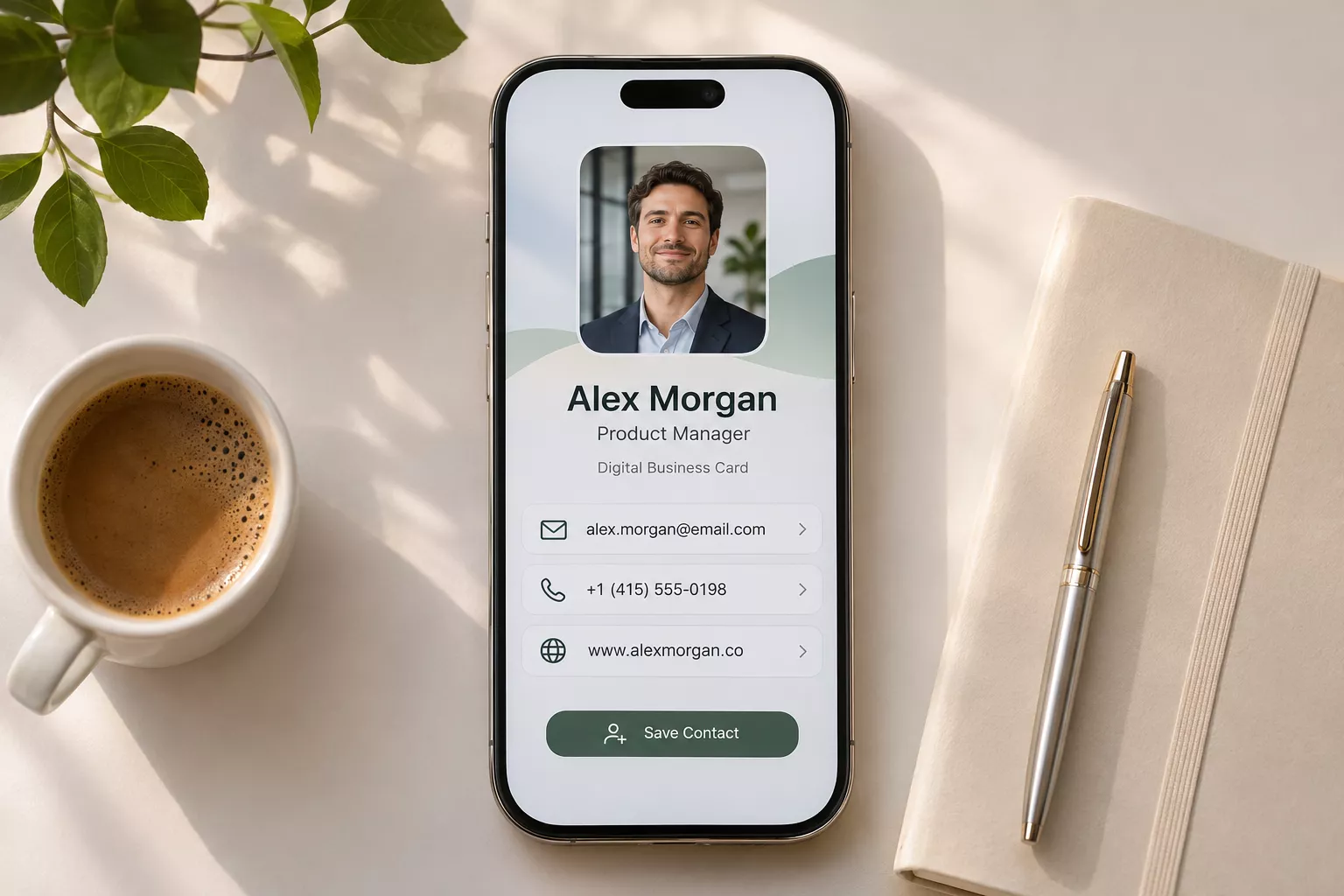
A digital business card is a web-based profile page that holds your contact details, social links, bio, and photo in one shareable URL. Anyone can open it in a browser — no app install required on either side.
This guide walks through how to create a digital business card from scratch, what information to include, how to share it, and how it compares to paper cards. By the end you will have a working card you can send to anyone.
What a Digital Business Card Actually Is
A digital business card is not a PDF or an image file. It is a live web page with a permanent URL — something like kobexa.com/janedoe — that displays your professional information and links. The person who receives it taps a link, scans a QR code, or taps an NFC card, and your profile opens in their phone browser.
Because it is a web page, you can update the content anytime. Change your job title, swap out a phone number, add a new social link — the URL stays the same. Anyone who saved it before sees the updated version the next time they open it.
37% of businesses have adopted digital business cards as of 2026, up from 16% in 2020. 72% of professionals say they prefer receiving a digital card over a paper one.
What to Include on Your Digital Business Card
Not everything belongs on a digital business card. The goal is to give someone enough information to remember you and reach you, without overwhelming them.
Essential Information
- Full name — the name you use professionally
- Job title and company — so people remember the context of your meeting
- Email address — your primary professional email
- Phone number — if you take business calls
- Professional photo — a clear headshot builds recognition and trust
Recommended Additions
- LinkedIn profile — the default professional networking platform
- Website or portfolio — if you have work to show
- Bio or headline — one to two sentences that describe what you do
- Location — city or region, helpful for in-person follow-ups
Optional (Add Based on Your Role)
- Additional social profiles — Instagram, GitHub, Twitter/X, TikTok depending on your industry
- Calendly or booking link — lets people schedule meetings directly
- WhatsApp or Telegram — common for international contacts
- Payment links — Venmo, PayPal, Cash App for freelancers or service providers
What to Leave Off
- Personal social media you do not use professionally
- More than two phone numbers — pick the one you answer
- A wall of links — curate 3–7 high-impact links rather than listing every account you have
The point is clarity. A focused card with five useful links outperforms one with fifteen links that dilute attention.
How to Create a Digital Business Card: Step by Step
Here is how to set one up using Kobexa. The process is similar on most platforms, but the specifics below apply to Kobexa's free tier.
Step 1: Create Your Account
Go to kobexa.com/signup and create a free account. You will choose a username — this becomes your profile URL (e.g., kobexa.com/yourname). Pick something professional and easy to spell. Your full name or a short variation of it works best.
Step 2: Add Your Information
From your dashboard, open the profile editor and fill in:
- Name, job title, company
- Bio or headline
- Email, phone number, location
- Website URLs (up to three)
Every field is optional. Add what is relevant to your professional context and skip the rest.
Step 3: Add Your Links
Add social media profiles and other links. Kobexa supports all major platforms: LinkedIn, Instagram, Twitter/X, Facebook, GitHub, TikTok, YouTube, WhatsApp, Telegram, Signal, Calendly, Venmo, PayPal, Cash App, and more.
Each link can be toggled on or off, reordered, and given a custom label. This lets you control exactly what visitors see first.
Step 4: Choose a Theme
Pick from 30+ themes to match your personal brand. Set your accent color, choose between light and dark mode, and select an icon style. The theme applies instantly — preview it on your profile before sharing.
Step 5: Share Your Card
Once your profile looks right, you have three ways to share it:
- Direct link — copy your profile URL and send it via text, email, DM, or paste it in your social media bio.
- QR code — download your QR code from the dashboard and add it to presentations, email signatures, printed materials, or your phone screen. Learn more in our QR code business cards guide.
- NFC card — if you want a physical card that opens your profile with a tap, you can order an NFC card from the shop. The card links to the same profile URL, so all your updates stay current.
Your digital business card is live immediately. No approval process, no waiting period.
Digital Business Card vs. Paper Business Card
| Paper Card | Digital Business Card | |
|---|---|---|
| Information capacity | Name, title, phone, email | Unlimited links, bio, photo, social profiles |
| Updatable | No — reprint required | Yes — edit anytime from your dashboard |
| Sharing method | Hand it over physically | Link, QR code, NFC tap, email, text |
| Recipient action | Manually type your details into their phone | Tap a link or scan to open your full profile |
| Analytics | None | Track views, clicks, and visitor locations |
| Cost | $0.02–$0.10 per card, recurring | Free (digital) or one-time NFC card purchase |
| Retention | 88% thrown away within a week | Always accessible via saved link or bookmark |
| Environmental impact | Paper, ink, shipping for every reprint | Zero waste (digital) or one reusable card (NFC) |
The retention number is worth emphasizing: nearly 9 out of 10 paper cards are discarded. A digital card avoids this entirely because the recipient saves a link, not a piece of paper.
How to Share Your Digital Business Card
Each sharing method works in different situations. Here is when to use each one.
Direct Link
Best for: remote contacts, email introductions, social media bios, messaging apps.
Copy your profile URL from your dashboard and paste it anywhere. This is the simplest method and works in every digital context — LinkedIn messages, Slack, WhatsApp, email signatures, or your Instagram bio.
QR Code
Best for: presentations, printed materials, events, email signatures, in-person meetings when you do not have a physical card.
Your Kobexa dashboard includes a downloadable QR code that points to your profile. You can also generate custom QR codes with specific colors and sizes using the free QR code generator.
NFC Card
Best for: conferences, client meetings, networking events, any in-person interaction.
An NFC business card is a physical card with an embedded chip. When someone holds their phone near it, your profile opens in their browser. No app needed on their end. Kobexa NFC cards also include a printed QR code on the back as a fallback — see options in the shop.
vCard Download
Best for: saving your contact directly to someone's phone contacts.
Your Kobexa profile includes a save-to-contacts button that downloads a vCard file. This adds your name, phone, and email to the recipient's phone contacts in one tap. You can also generate standalone vCard files with the free vCard generator.
What Makes a Good Digital Business Card
A digital card that people actually use shares a few traits:
Loads fast. Your profile should open in under two seconds. Heavy images or complex animations slow it down and cause people to close the tab. Kobexa profiles are lightweight web pages that load quickly on any connection.
Reads clearly on mobile. Over 90% of people will view your card on a phone. The layout must work on small screens without horizontal scrolling or tiny text.
Has a clear hierarchy. Name and title at the top, photo, then the most important links. Do not bury your email address below ten social media icons.
Stays current. An outdated digital card is worse than no card at all. If your phone number changed six months ago, anyone who taps "call" gets a dead line. Set a quarterly reminder to review your profile.
Includes a professional photo. Profiles with photos get significantly more engagement than faceless ones. Use a clear headshot with good lighting — it does not need to be studio quality, but it should look intentional.
Limitations and Edge Cases
Digital business cards solve most networking scenarios, but they are not perfect in every situation.
Internet required. Your profile is a web page, so the recipient needs an internet connection to open it. In areas with no cell service or Wi-Fi — basements, rural locations, airplane mode — the link will not load until connectivity returns. The link itself is still saved and can be opened later.
Older phones. Most smartphones manufactured after 2017 support QR scanning natively. For NFC, iPhones from iPhone 7 onward and most Android phones from 2018 onward support background NFC reading. Older devices may need a QR scan as a fallback.
Formal industries. In some traditional contexts — law firms, government, diplomatic settings — a physical card exchange is still expected. A digital card works as a supplement in these cases, not necessarily a full replacement. You can hand over an NFC card (which is physical) and still deliver a digital experience.
Privacy preferences. Some people are cautious about scanning unknown QR codes or tapping unknown NFC cards. Having your name and company visible on the physical card and stating "this opens my contact page" removes most hesitation.
Platform lock-in. Your digital card lives on the platform you chose. If you cancel or switch providers, your old URL stops working. Before committing, check whether the platform lets you export your contacts and whether your URL will redirect if you leave.
How to Get Started with Kobexa
- Create your free profile at kobexa.com/signup — takes under a minute.
- Add your details — name, title, bio, links, and photo from your dashboard.
- Pick a theme — choose from 30+ options and set your brand colors.
- Share your link — copy your URL, download your QR code, or order an NFC card.
- Check your analytics — see who viewed your profile and which links they clicked.
Your digital business card is free and stays free. NFC cards are an optional add-on for people who want a physical sharing method — available in the shop with free U.S. shipping.
Frequently Asked Questions
Is a digital business card really free?
Yes. On Kobexa, creating and maintaining your digital business card is free with no trial period, credit card requirement, or hidden fees. You get a full profile page with unlimited links, 30+ themes, analytics, contact capture, and a shareable URL. NFC cards are a separate, optional purchase.
Can I have more than one digital business card?
Most platforms support one profile per account. If you need separate cards for different roles — say, one for your day job and another for freelance work — you would create separate accounts with different usernames. Some enterprise platforms offer multi-card management for teams.
Do recipients need to download an app?
No. Your digital business card is a standard web page that opens in any browser. The person receiving it does not need to install anything — they just tap a link, scan a QR code, or hold their phone near an NFC card.
How do I add my digital business card to my email signature?
Copy your profile URL and hyperlink it from your name or a "View my digital card" line in your email signature settings. For a visual option, download your QR code and embed the image in the signature with a link to your profile. Most email clients (Gmail, Outlook, Apple Mail) support this in their signature editor.
What happens if I change my information after sharing?
Your URL stays the same. When you update your profile — new phone number, new job title, new photo — the changes are live immediately. Anyone who opens your link from that point forward sees the updated information. You do not need to re-share or reprint anything.
How is a digital business card different from a LinkedIn profile?
A LinkedIn profile is tied to LinkedIn's platform, layout, and audience. A digital business card is a standalone page you control — you choose what information appears, what links to include, and how it looks. It also works for people who are not on LinkedIn, and it can include platforms LinkedIn does not support (payment links, messaging apps, booking links). The two complement each other: put your LinkedIn link on your digital card.
Can I use a digital business card for my whole team?
Yes. Many organizations create digital business cards for every employee to maintain consistent branding. Each team member gets their own profile with the company logo, colors, and standardized layout, while adding their own name, title, and contact details. This is common in sales, real estate, and consulting where client-facing teams share contact info frequently.
A digital business card takes five minutes to set up and works everywhere your paper card cannot — in emails, on social media, through QR scans, and via NFC taps. The information stays current, the link never expires, and every view is tracked.
Ready to upgrade your networking?
Get your NFC business card from Kobexa
Tap to share your profile instantly — no app required. Pair it with a QR fallback and keep your details updatable forever.
Shop Now